

Sharing
Share your experiments in two ways: collect data from participants with public links, or collaborate with team members who can help build and refine your experiment. The Share dialog provides everything you need to distribute experiments and manage access.Overview
Sharing enables: For data collection:- Generate public links for participant recruitment
- Integrate with Prolific, MTurk, SONA
- Set participant limits and expiration dates
- Monitor completion statistics in real-time
- Prevent duplicate responses
- Generate completion codes
- Invite team members by email
- Set permission levels (Viewer, Editor, Owner)
- Work together in real-time
- Manage pending invitations
- Control who can edit experiment
- Ready to collect real participant data
- Need collaborator feedback or help
- Publishing to community repository
- Testing with colleagues before full launch
Share Dialog
Where to Find
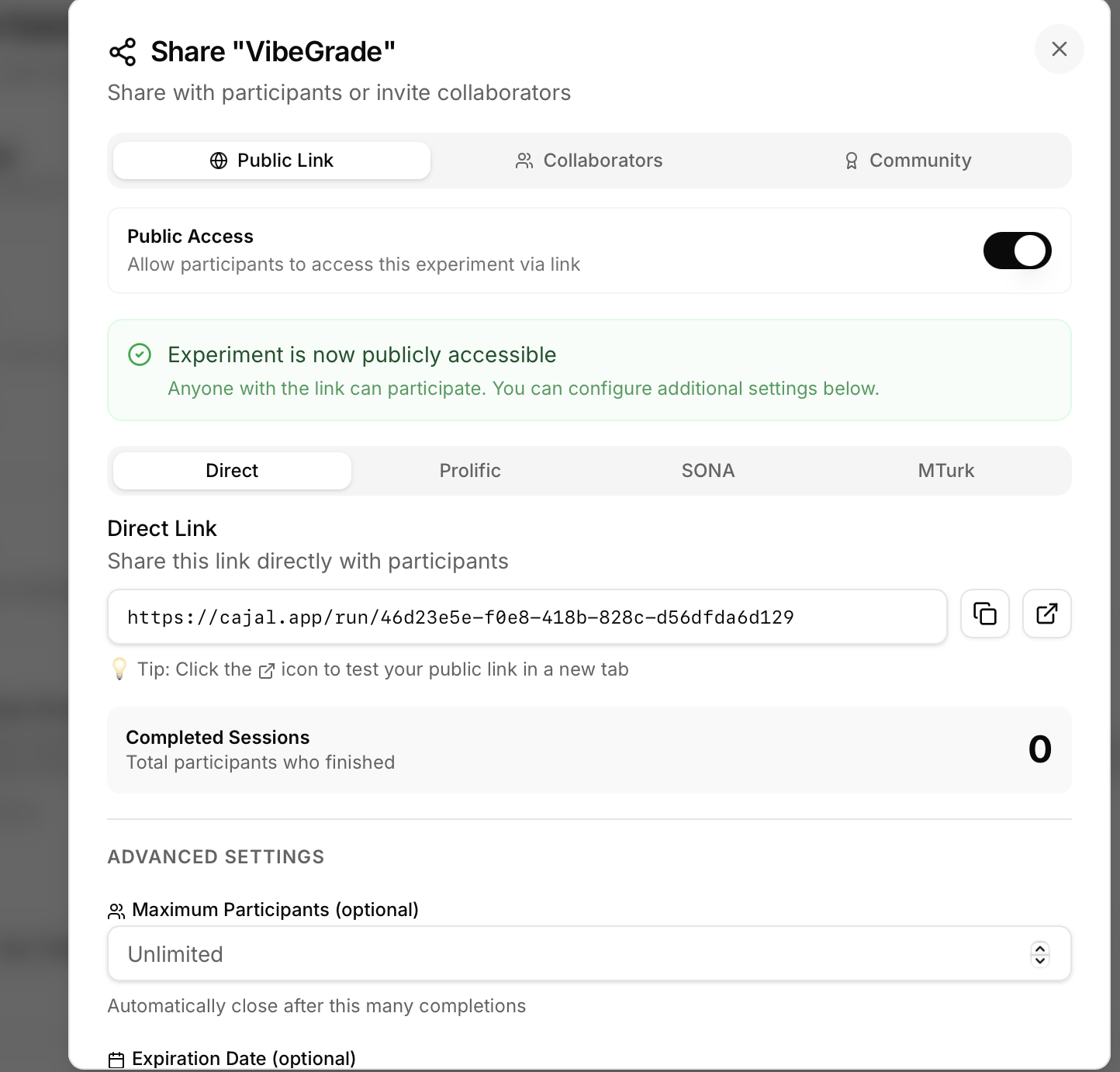
Open share dialog:- In experiment, click Share button in top toolbar
- Or use keyboard shortcut (if configured)
- Share dialog opens with three tabs
- Public Link - For participant data collection
- Collaborators - For team access
- Community - For public repository submission
Tab 1: Public Link (Participant Sharing)
Collect data from participants with publicly accessible links.Making Experiment Public
Publish your experiment:- Open Share dialog
- Go to “Public Link” tab
- Toggle “Make Public” switch to ON
- Experiment validates automatically
- If validation passes, publish button activates
- Click “Publish”
- Public link generates
- Experiment now accessible via link
- Experiment frozen (edits create new version)
- Unique share link created
- Participant data collection enabled
- Real-time monitoring active
Share Links
Once published, you get links formatted for different platforms.Direct Link
Universal sharing link for any recruitment method. Format:- Email recruitment
- Social media posts (Twitter, Reddit)
- QR codes for in-person recruitment
- Direct messaging to participants
- Embedding in websites
- Copy link from Share dialog
- Send to participants directly
- Participants click and run experiment
- Data automatically recorded
Prolific Integration
Complete workflow for Prolific studies: Step 1: Publish in Cajal- Toggle “Make Public”
- Click “Publish”
- Copy Prolific link (special format)
- Log into Prolific
- Click “New Study”
- Fill in study details (title, description, etc.)
- Set sample size and payment
- Under “Study link”, select “I’ll use my own link”
- Paste Cajal Prolific link
- Prolific format:
https://assesskit.com/run/[id]?PROLIFIC_PID={{%PROLIFIC_PID%}}
- Enable “I’ll redirect them at the end”
- Cajal automatically redirects to Prolific completion
- Or set custom redirect in Cajal settings
- Review and publish in Prolific
- Participants see Cajal experiment
- Upon completion, redirect to Prolific
- Payment processed automatically
- PROLIFIC_PID captured automatically from URL
- Stored with participant data
- Links Cajal data to Prolific submissions
- Enables payment verification
- Cajal shows completion code at end
- Participant enters in Prolific
- Verifies completion
- Or use automatic redirect (no code needed)
MTurk (Amazon Mechanical Turk)
Workflow for MTurk HIT: Step 1: Get MTurk Link- Publish experiment in Cajal
- Copy MTurk link from Share dialog
- Format:
https://assesskit.com/run/[id]?workerId=${workerId}
- Log into MTurk Requester
- Create new HIT
- Choose “Survey Link” project type
- Paste Cajal MTurk link as survey URL
- Set reward amount
- Set number of assignments (participants)
- Set time limit and expiration
- workerId captured from URL automatically
- Stored with data for payment verification
- Cajal shows completion code
- Worker enters code in MTurk to submit
- Verify code matches for payment approval
SONA (Psychology Participant Pool)
Workflow for SONA credits: Step 1: Get SONA Link- Publish in Cajal
- Copy SONA link
- Format:
https://assesskit.com/run/[id]?survey_code=%SURVEY_CODE%
- Log into SONA system
- Add new study
- Select “Study URL” for online studies
- Paste Cajal SONA link
- Set credit amount
- Set participant eligibility
- Participants click from SONA
- survey_code captured automatically
- Upon completion, redirect to SONA
- Credits granted automatically
QR Codes
Share experiments for mobile or in-person recruitment. QR code generation:- Publish experiment
- Share dialog shows QR code automatically
- Click to view full-size QR code
- Download or print QR code
- Post on flyers for in-person recruitment
- Display in lab waiting area
- Include in presentations
- Share via messaging apps
- Quick mobile access
- Scan QR code with smartphone camera
- Opens experiment in mobile browser
- Complete experiment on phone
- Data collected same as desktop
Advanced Settings
Fine-tune data collection parameters.Participant Limits
Maximum completions - Stop accepting participants after N completions. Settings:- Unlimited (default)
- Or set specific number (e.g., 100 participants)
- Funded studies with fixed sample size (e.g., “Recruit 50 participants”)
- Prevent over-recruitment
- Budget control (if paying participants)
- Power analysis determined N needed
- Link still works but shows “Study full” message
- No more data collected
- You’re notified via email (if configured)
- Public Link tab → Advanced Settings
- Enable “Maximum participants”
- Enter number (e.g., 100)
- Save settings
Expiration Dates
Auto-close recruitment after specific date/time. Settings:- No expiration (default)
- Or set date and time (e.g., “December 31, 2024 11:59 PM”)
- Time-limited studies (e.g., “Recruiting through end of semester”)
- Conference deadline data collection
- Longitudinal study waves (specific time windows)
- Prevent stale links from collecting invalid data
- Link shows “Study closed” message
- No new participants can start
- Participants who started before expiration can finish
- You can extend expiration if needed
- Advanced Settings → “Expiration date”
- Select date and time
- Save settings
Data Collection Options
Email collection:- Disabled - No email collected (default)
- Optional - Participant can provide email
- Required - Must provide email to participate
- Longitudinal studies (recontact participants)
- Sending results or compensation
- Deduplication (prevent same person multiple times)
- Follow-up studies
- Same options: Disabled, Optional, Required
- Collect participant names for records
- Usually optional unless required by IRB
- Only collect what’s necessary for research
- Check IRB requirements
- Provide privacy notice
- Store securely
Deduplication
Prevent duplicate responses from same participant. Deduplication methods: 1. IP Address Tracking- Same IP address blocked from repeating
- Simple, automatic
- Limitation: Shared IPs (libraries, households) blocked together
- Identifies browser configuration
- More precise than IP
- Works across network changes
- Harder to circumvent
- Uses Prolific PID, MTurk Worker ID, or email
- Most reliable for platform recruitment
- Requires participant identifier
- None - Allow repeats (not recommended for most studies)
- IP only - Prevent same IP
- Browser fingerprint - Prevent same browser
- Strict - IP + fingerprint + ID
- Allow re-participation after N days
- Example: “No repeat for 30 days”
- Useful for longitudinal designs
- Advanced Settings → “Deduplication”
- Choose method
- Set cooldown (if applicable)
- Save
Monitoring Progress
Track recruitment and completion in real-time. Real-time statistics:- Total participants - How many started
- Completed - How many finished
- In progress - Currently active sessions
- Completion rate - Percentage who finished
- Average time - How long to complete
- Dropout rate - Percentage who abandoned
- Share dialog → Public Link tab
- “Statistics” section shows counts
- Click “View Details” for breakdown
- Real-time updates (refresh every 30 seconds)
- Monitor recruitment pace
- Estimate time to target N
- Identify technical issues (high dropout)
- Adjust recruitment if needed
Validation Before Publishing
Cajal checks experiment before publishing: What gets validated:- All components have valid properties
- No broken image links
- All text elements have content
- Response components have valid keys configured
- Timeline structure makes sense
- No missing required fields
- “Ready to publish”
- No issues found
- Publish button enabled
- “Recommended fixes but can publish”
- Examples: No practice trials, long experiment, no breaks
- You can still publish, but consider fixes
- “Must fix before publishing”
- Examples: Missing images, invalid response keys, broken flow
- Publish button disabled
- Fix errors then retry
- “Experiment over 20 minutes - consider adding breaks”
- “No practice trials - participants may be confused”
- “Instructions don’t explain response keys”
- “No consent form - check IRB requirements”
- Review warnings/errors
- Click error to jump to problematic component
- Fix issue
- Re-validate (automatic)
- Publish when validation passes
Tab 2: Collaborators (Team Sharing)
Invite team members to help build and refine experiments.Adding Collaborators
Invite collaborators by email: Steps:- Share dialog → Collaborators tab
- Enter collaborator email address
- Select permission level (Viewer or Editor)
- Click “Send Invitation”
- Invitation sent to email
- Collaborator appears in “Pending Invitations”
- Email invitation with link
- Explanation of permission level
- “Accept” or “Decline” options
- Link to experiment (after accepting)
- Collaborator added to “Active Collaborators” list
- Can access experiment based on permissions
- Receives notifications of changes (if enabled)
Permission Levels
Three permission levels control what collaborators can do. Permission comparison:
Viewer:
- Read-only access
- Can view and preview
- Cannot make changes
- Good for: Stakeholders, advisors reviewing work
- Full editing access
- Can build and modify experiment
- Can publish changes
- Cannot manage team or delete experiment
- Good for: Co-authors, research assistants, team members
- Full control
- Only one owner per experiment
- Can transfer ownership to someone else
- Can delete experiment
- Good for: Primary investigator, lab manager
Managing Collaborators
View active collaborators:- Share dialog → Collaborators tab
- “Active Collaborators” section
- Shows: Name, email, permission level, date added
- Find collaborator in list
- Click permission dropdown
- Select new level (Viewer or Editor)
- Save changes
- Collaborator notified of permission change
- Find collaborator in list
- Click “Remove” button
- Confirm removal
- Collaborator loses access immediately
- Notified via email of removal
- Must be current owner
- Select new owner from collaborators (must be Editor first)
- Confirm transfer
- You become Editor, they become Owner
- Cannot be undone (new owner must transfer back)
Pending Invitations
View pending invitations:- “Pending Invitations” section
- Shows: Email, permission level, sent date, status
- Collaborator didn’t receive or lost email
- Click “Resend”
- New email sent with invitation link
- Changed mind about inviting
- Click “Revoke”
- Invitation cancelled
- If they click link, shows “Invitation expired”
- Invitations expire after 7 days
- Must resend if expired
- Prevents stale invitations
Real-Time Collaboration
When multiple people edit:- See who else is viewing/editing
- Presence indicators show active collaborators
- Changes sync automatically
- No explicit “save” needed - auto-saves
- If two people edit same component simultaneously
- Last save wins (later timestamp)
- System alerts you if your changes were overwritten
- Can view change history to recover
- Communicate with team about who’s editing what
- Use comments or notes to coordinate
- Don’t edit same components simultaneously
- Review changes in version history if conflicts occur
Tab 3: Community (Public Repository)
Submit your experiment to Cajal’s public repository for others to use.Submitting to Community
What is the community repository:- Public collection of experiments
- Shared by researchers
- Discoverable by psychology community
- Template library for others to use
- Share validated paradigms
- Contribute to open science
- Increase citations (link to your paper)
- Help other researchers
- Share dialog → Community tab
- Click “Submit to Community”
- Fill in required and optional information
- Submit for moderator review
- Wait for approval (typically 1-2 weeks)
- Experiment appears in public repository if approved
Required Information
Must provide: 1. Experiment Title- Clear, descriptive title
- Include paradigm name if applicable
- Example: “Classic Stroop Task (160 trials)”
- Select primary category:
- Cognitive Psychology
- Perception
- Memory
- Attention
- Social Psychology
- Clinical Psychology
- Developmental
- Neuroscience
- Surveys/Questionnaires
- Other
- Brief description of experiment (500 char limit)
- What does it measure?
- Key features
- Example: “Classic Stroop color-word interference task with 160 trials (80 congruent, 80 incongruent). Includes practice trials and automatic scoring.”
Optional Information
Recommended to provide: Research Area (Subcategory):- More specific than main category
- Examples:
- Working Memory
- Selective Attention
- Facial Recognition
- Moral Judgment
- Anxiety Disorders
- Link to published paper using this paradigm
- DOI format:
10.1037/xxxxx - Or URL to preprint/paper
- Full reference for your paper
- Proper APA 7th edition formatting
- Example: “Smith, J., & Doe, A. (2024). Title of paper. Journal Name, 10(2), 123-145. https://doi.org/10.xxxx”
- Up to 5 keywords
- Lowercase, comma-separated
- Examples: “stroop, interference, attention, reaction time, cognitive control”
- Helps discoverability
Approval Process
Moderator review: What moderators check:- Technical validity - Experiment works correctly
- Scientific quality - Appropriate methodology
- Completeness - Instructions clear, all components present
- Compliance - Follows community guidelines
- Appropriate content - No harmful or unethical studies
- Submission received notification
- Review within 1-2 weeks
- Approval/rejection email
- If rejected, reason provided with option to resubmit
- Experiment runs without errors
- Clear instructions for participants
- Standard or well-validated paradigm
- Ethical and appropriate for public use
- Proper attribution (citations if replicating published work)
- Experiment appears in Community Repository
- Public can view, duplicate, and use
- You maintain ownership of original
- Can update anytime (requires re-approval for changes)
After Approval
Community experiment benefits: Public visibility:- Appears in searchable repository
- Discoverable by keyword, category, tags
- Increases reach and impact
- View count - How many people viewed your experiment
- Duplicate count - How many people copied it
- Like/favorite count - Community interest metric
- Citation tracking (if paper linked)
- Attribution shown to all users
- Your research visible to global community
- You can update approved experiments
- Updates require re-approval
- Original submission always available
- Version history maintained
Testing Your Shared Experiment
Before distributing to real participants:Test in New Tab
“Test in New Tab” button:- Share dialog → Public Link tab
- Click “Test in New Tab”
- Opens experiment in participant view
- New browser tab, simulates real participant
- Complete experiment as participant would
- Link loads correctly
- All images display
- Instructions clear
- Response collection works
- Timing feels appropriate
- Completion code appears (if used)
Test on Different Devices
Devices to test:- Desktop browser - Chrome, Firefox, Safari
- Mobile phone - If participants will use mobile
- Tablet - If applicable
- Different screen sizes - Ensure responsive
- Images too large for mobile screen
- Text too small to read
- Buttons too small to tap
- Layout breaks on narrow screens
- Adjust responsive settings
- Test on actual devices
- Get feedback from colleague on different device
Test with Colleague
Naive user test:- Send link to colleague unfamiliar with experiment
- Ask them to complete without explanation
- Don’t guide or answer questions
- Note what confuses them
- Fix unclear instructions or issues
- Retest until smooth experience
- Were instructions clear?
- Any confusing parts?
- Any technical issues?
- How long did it take?
- Any suggestions?
Completion Codes
Verify participant completion for paid studies.Configuring Completion Codes
Settings:- Share dialog → Public Link tab
- Advanced Settings → “Completion Code”
- Choose code format
- Random - Random alphanumeric string (e.g., “X7K9P2”)
- Sequential - Sequential numbers (e.g., “CAJAL-0001”, “CAJAL-0002”)
- Custom template - Define your own pattern with variables
{sessionId}- Unique session identifier{random}- Random string{timestamp}- Completion time{participantId}- If collected
Showing Codes to Participants
Automatic display:- Completion code shown at end of experiment
- Full-screen display
- Instructions: “Copy this code and paste into [platform]”
- Button to copy code to clipboard
- Complete experiment
- See completion code
- Copy code (click copy button or select text)
- Return to Prolific/MTurk/etc.
- Paste code to verify completion
- Submit for payment
Verifying Completion
Platform-specific verification: Prolific:- Participant enters code in Prolific
- You review and approve submissions
- Match code to Cajal data using PROLIFIC_PID
- Approve payments
- Worker enters code to submit HIT
- You check code validity
- Approve payments for valid codes
- Export data from Cajal
- Column shows completion codes
- Match participant submissions to codes
- Verify completion before payment
Settings Reference
Quick reference for all sharing settings.Troubleshooting
Common Issues
Link Not Working Symptom: Participants can’t access experiment Causes:- Experiment not published (still draft)
- Public access toggled OFF
- Link expired (expiration date passed)
- Max participants reached
- Check experiment status (must be “Published”)
- Verify “Make Public” toggle is ON
- Check expiration date hasn’t passed
- Check participant limit not reached
- Re-publish if needed
- Validation errors in experiment
- Missing required form fields
- Broken image links
- Response keys not configured
- Browser compatibility issues
- Preview entire experiment yourself
- Check for validation warnings
- Test on different browsers
- Fix missing/broken content
- Re-publish after fixes
- Components missing response configuration
- Database connection issues (rare)
- Participant closed browser early
- Network issues during submission
- Verify all response components have response configuration
- Check data export - may be collecting but not visible in interface
- Test data collection with preview mode
- Check that “Save responses” is enabled for components
- Set max participants limit beforehand
- Monitor progress regularly
- Close recruitment when approaching target
- Use first N participants
- Or randomly sample from full dataset
- Document in methods
- Enable deduplication before launching
- Use strict method (IP + fingerprint + ID)
- Check for duplicate IDs (Prolific PID, email, etc.)
- Remove duplicates in analysis
- Keep first or last submission (document choice)
Best Practices
Before Sharing
Pre-flight checklist:- Preview entire experiment
- Test on target devices
- Colleague review (naive user)
- Validate before publishing
- Set appropriate participant limit
- Configure expiration date if needed
- Enable deduplication
- Test platform integration (Prolific link works)
During Data Collection
Monitor regularly:- Check completion rate
- Watch for high dropout (indicates problem)
- Review first few participants’ data
- Respond to participant questions promptly
- Adjust recruitment if needed
- Make major changes to published experiment
- Change settings mid-recruitment (creates inconsistency)
- Ignore dropout patterns
After Data Collection
Close recruitment:- Toggle “Make Public” OFF when target reached
- Or set expiration date
- Prevents accidental additional data
- Export data immediately
- Back up raw data
- Document any exclusions
- Store securely per IRB requirements
Next Steps
Now that you understand sharing:Preview
Test before sharing with participants
Task Editor
Build or refine your experiment
Variables
Configure trial variations
AI Assistant
Get help improving your experiment